Affiliate disclosure: PG Systems Lab may participate in affiliate programs. If an affiliate relationship is approved and an affiliate link is added, we may earn a commission from qualifying purchases. This does not change our editorial standards. No active affiliate link is included in this article. Read our Affiliate Disclosure.
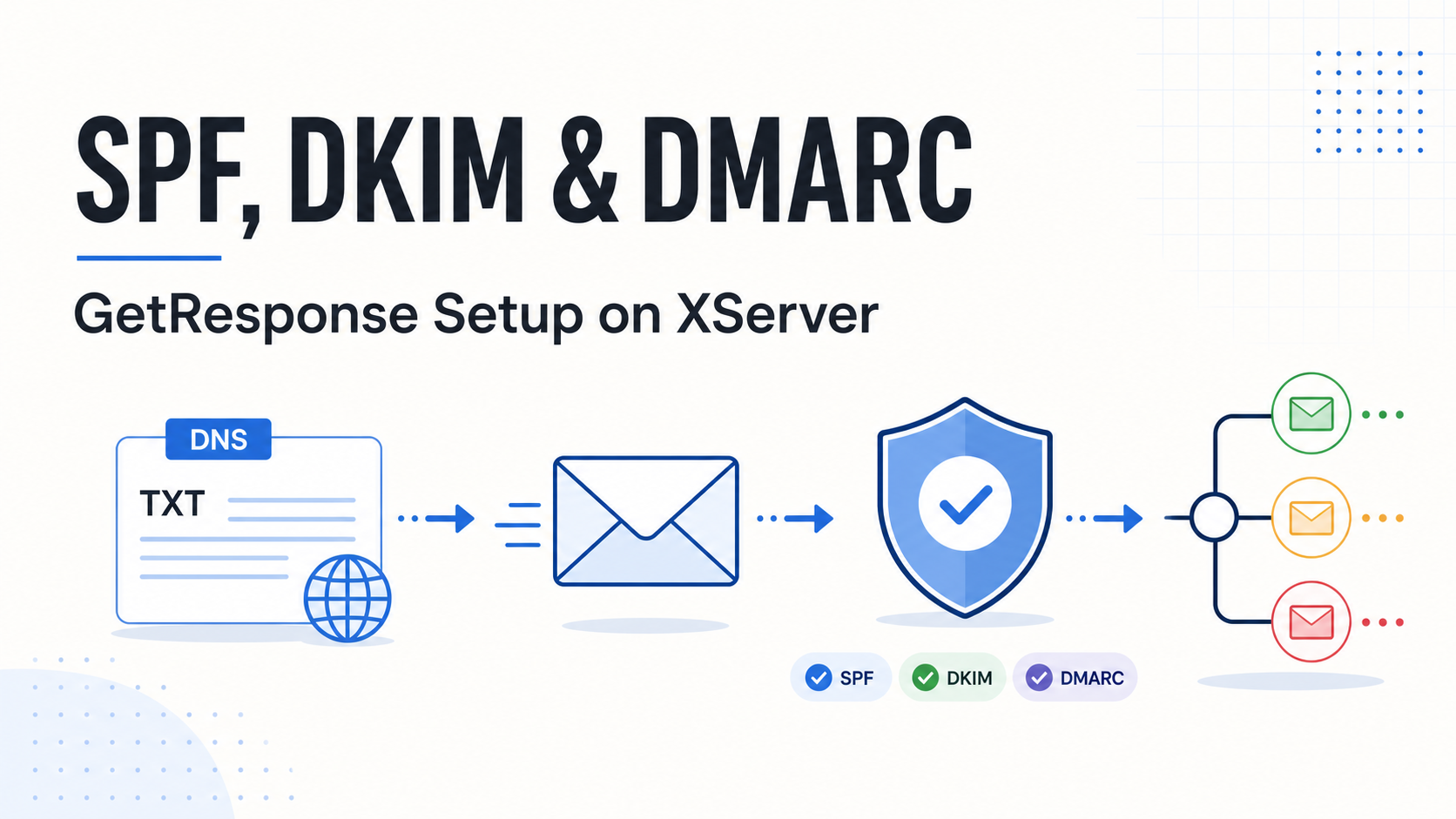
Sending email from a custom domain through GetResponse is not only a matter of writing a campaign. Before a small business, freelancer, consultant, or agency sends to a real audience, it needs a sending identity that can be checked by receiving mail systems. In practice, that means reviewing SPF, DKIM, and DMARC alongside the sender address itself.
This guide explains a cautious setup path for using GetResponse with an XServer-managed domain. It combines current official documentation with a controlled configuration and delivery test completed in August 2026. The test confirmed authentication results for one configuration, but it did not prove general deliverability, inbox placement, or campaign performance.
DNS changes can affect website and email services. If you do not control the domain’s DNS zone or cannot identify the records already in use, stop and involve the responsible administrator before editing anything.
- Before You Start
- Step 1: Add and Verify Your From Address in GetResponse
- Step 2: Review the Authentication Records in GetResponse
- Step 3: Add the DKIM Record in XServer
- Step 4: Add the DMARC Record in XServer
- Step 5: Understand SPF on GetResponse
- Step 6: Wait for DNS Propagation and Recheck GetResponse
- Step 7: Send a Controlled Test Email
- Our Controlled Test Result
- Common Mistakes
- Troubleshooting
- Final Verdict
- FAQ
- Official Documentation
Before You Start
Prepare the following before changing a record:
- A custom-domain email address you are authorized to use as the From address.
- Access to the GetResponse account and its Emails and domains area.
- Access to the XServer DNS record settings for the exact domain.
- A list of the domain’s existing TXT records, especially SPF and DMARC records.
- A controlled inbox for testing after the configuration is confirmed.
Do not guess at a DNS value or reuse an example selector from another guide. GetResponse can provide account- and domain-specific authentication values. Copy the current host and value displayed in your own account, and keep any private selectors, keys, account identifiers, and test addresses out of public notes or screenshots.
XServer’s DNS manual describes TXT records as a supported record type and warns that incorrect DNS changes can affect website or email use. Make a record of the current zone before editing it, then make one deliberate change at a time.
Step 1: Add and Verify Your From Address in GetResponse
In GetResponse, begin in the area for managing email domains and sender addresses. Add the custom-domain address you plan to use, then complete the platform’s address-verification flow before treating it as ready for a newsletter.
Use a From name that clearly identifies the business, and set the Reply-to address intentionally. The From address tells recipients who sent the message; Reply-to controls where replies go. They may be the same address, but they should both be reviewed before a send.
GetResponse’s navigation and labels can change. Use the current Emails and domains documentation and the interface available in your account rather than relying on an old screenshot or a copied menu path.
Step 2: Review the Authentication Records in GetResponse
GetResponse may show separate states for SPF, DKIM, and DMARC. Read the current instructions carefully before adding or changing a DNS record.
- SPF identifies sending sources that are permitted by a domain’s SPF policy.
- DKIM lets a receiving system validate a cryptographic signature associated with a sending domain.
- DMARC evaluates SPF and/or DKIM in relation to the visible From domain and applies the domain owner’s policy.
Do not interpret a green status as a promise that every email will reach the inbox. Authentication is a configuration and identity check. Placement can still vary with sender reputation, sending history, recipient-side filtering, content, engagement, and other factors.
Step 3: Add the DKIM Record in XServer
GetResponse provides the DKIM host and value to publish for the domain. In the XServer DNS record settings, select the correct domain, add a TXT record, and enter the GetResponse-provided values exactly as displayed. Save the change, then return to GetResponse to recheck the state after DNS has had time to propagate.
Use the current selector supplied by GetResponse. Do not substitute a selector copied from another account, another provider, or an old tutorial. A selector is part of the DNS name used to locate the public DKIM key, so a plausible-looking but wrong selector will not authenticate your mail.
For this site test, a 2048-bit GetResponse-provided DKIM key was published as instructed and later showed as authenticated. That observation does not make a particular selector, host, or TXT value reusable for another domain.
Also avoid deleting an existing XServer DKIM-related record merely because GetResponse supplies a new one. Different services can have distinct selectors. Remove or replace a record only when you have confirmed its purpose and its replacement path with the relevant provider.
Step 4: Add the DMARC Record in XServer
For a first monitoring-oriented DMARC record, the tested configuration used the following public pattern:
| Field | Example used for the initial monitoring policy |
|---|---|
| Host | _dmarc |
| Type | TXT |
| Value | v=DMARC1;p=none |
| TTL | 3600 |
p=none is useful for observing authentication behavior without asking receiving providers to quarantine or reject mail on the basis of the DMARC policy. It is not the same as a final enforcement policy. Moving to p=quarantine or p=reject can affect legitimate mail if every sending source is not aligned and understood.
Publish only one DMARC record for a domain. Adding a second DMARC TXT record is not a safe way to add a policy or a reporting address; review the existing record and update it deliberately if an authorized administrator decides to do so.
Step 5: Understand SPF on GetResponse
SPF is often the most confusing part of a multi-service setup. A domain can have only one SPF record in its DNS zone. If the domain already authorizes an XServer mailbox service, Google Workspace, Microsoft 365, or another sender, do not publish a second v=spf1 TXT record for GetResponse. Multiple SPF records can cause SPF validation to fail.
Instead, obtain the current GetResponse instruction from the account’s Emails and domains area and merge it carefully into the single SPF policy when required. GetResponse’s official guide to merging SPF records explains this single-record rule and advises retrieving the required value from the account.
There is another important distinction: the visible From domain and the envelope or bounce domain are not necessarily the same. In the controlled August 2026 test, SPF passed for a GetResponse bounce domain. That did not mean SPF directly aligned with the visible sending domain. DMARC passed through aligned DKIM for the visible domain. This is a normal technical distinction, not a failure.
Step 6: Wait for DNS Propagation and Recheck GetResponse
DNS updates are not always visible immediately. Wait for the record to propagate, then return to GetResponse and recheck the current status. Do not create additional records just because a status does not change instantly.
For a safe recheck, confirm the exact domain, host, record type, and value against the current GetResponse screen and the DNS zone. Keep a private record of the change time and any validation message. If the state remains unresolved, review the official documentation or contact the provider rather than repeatedly editing values.
Step 7: Send a Controlled Test Email
After GetResponse indicates that the records are in place, send one neutral test message to an inbox you control. Review the From address, Reply-to address, rendering, footer, unsubscribe behavior, and authentication details in the received message. Check both Inbox and Spam; do not look only at the first folder that opens.
A controlled test is a configuration check, not a performance study. Do not use customer data, a live campaign, or a broad list merely to see whether a setting works. Keep the first test private and record what happened, including anything that remains unclear.
Our Controlled Test Result
In a controlled test completed on August 2, 2026, PG Systems Lab used XServer DNS and GetResponse with a custom-domain From address and Reply-to address. The recorded header results were:
- SPF: PASS for the GetResponse bounce domain.
- DKIM: PASS for the visible sending domain.
- DMARC: PASS for the visible sending domain through DKIM alignment.
A newsletter sent to one controlled Yahoo inbox was received but classified as Spam. Because the observed authentication checks passed, that result was not explained by an observed authentication failure. It also does not identify a single cause. Sender reputation, sending history, recipient-side filtering, message content, and other factors may influence placement.
In a later controlled subscription test, an automated welcome message reached the Inbox. The messages and paths were different, so the two observations are not a general inbox-placement comparison. The useful conclusion is narrow: authentication worked in the tested configuration, while inbox placement still varied.
For the broader product-test boundaries, read our GetResponse review for small businesses. For a platform-neutral first-workflow checklist, see Email Automation for Small Teams.
Common Mistakes
- Creating a second SPF record. Merge authorized senders into one SPF policy instead of publishing multiple SPF TXT records.
- Copying another domain’s DKIM selector or key. Use the value currently shown by GetResponse for the exact domain.
- Replacing an existing DNS record without identifying it. Existing XServer mail, website, and other services may depend on records already in the zone.
- Publishing multiple DMARC records. Maintain one deliberate DMARC record per domain.
- Starting with enforcement before validating every sender. A monitoring policy can be a safer initial state while legitimate sources are reviewed.
- Treating authentication as an inbox guarantee. Passing SPF, DKIM, and DMARC does not prove deliverability or business results.
Troubleshooting
GetResponse still shows DKIM as unauthenticated
Compare the host and value character for character with the current GetResponse instruction, verify that the record is in the DNS zone for the correct domain, and allow time for propagation. Do not publish a public screenshot containing the selector, key, account data, or test details.
DMARC is not shown as added
Check that the host is _dmarc for the intended domain, that the record type is TXT, and that there is not a second competing DMARC record. A DMARC record should be reviewed as a single domain-level policy.
SPF passes on a different domain than the visible From domain
That may reflect a bounce or envelope domain used by the sending service. Examine SPF and DKIM separately, then determine how DMARC passed. Do not claim direct SPF alignment unless the message details actually show it.
All authentication checks pass, but the newsletter is in Spam
Do not change DNS records repeatedly as a first reaction. Authentication is only one part of placement. Keep the result narrow, review the sender history and content, and test responsibly with a controlled inbox before sending to a live audience.
Final Verdict
XServer can host the DNS records needed for a GetResponse sending-domain setup, but the work should be treated as an operational change, not a box-ticking exercise. Use the current values provided by GetResponse, preserve the existing DNS context, and confirm the result with a controlled send.
Authentication is necessary infrastructure for a responsible email workflow. It is not a guarantee that every message will land in the Inbox. Small teams should test their own sender, audience, content, and operating process before relying on a campaign.
FAQ
Do I need SPF, DKIM, and DMARC for GetResponse?
Use the current GetResponse guidance for the domain you send from. SPF, DKIM, and DMARC address different parts of email authentication, and a controlled configuration review helps confirm how they work together for your setup.
Why did SPF pass for a GetResponse bounce domain?
GetResponse can use a bounce or envelope domain that differs from the visible From domain. SPF may pass for that sending domain while DMARC passes through aligned DKIM for the visible domain. Do not describe that as direct SPF alignment unless the message details support it.
Can I create more than one DMARC record?
No. Maintain one deliberate DMARC record for a domain. Review and update the existing policy rather than adding another one.
Should I start with p=none?
A monitoring policy can be an appropriate initial choice while you identify legitimate senders and validate the setup. Do not move to stricter enforcement without understanding the effect on all authorized mail sources.
Does authentication guarantee inbox placement?
No. Our controlled test recorded passing authentication checks and a Yahoo newsletter placement in Spam. A later automated message reached the Inbox. Those observations do not prove a general placement outcome.
Should I delete XServer’s default DKIM record?
Not automatically. Identify what an existing record supports before removing it. Use the separate GetResponse-provided selector for the new authentication record unless the responsible provider confirms a replacement is required.
Official Documentation
The following sources were checked on August 3, 2026. Provider interfaces and record values can change, so verify the current instructions before editing DNS.
- GetResponse Help Center: Emails and domains
- GetResponse Help Center: How to merge SPF records
- XServer Manual: DNS record settings
For a broader buying framework before committing to any provider, see Best Email Marketing Software for Small Agencies.